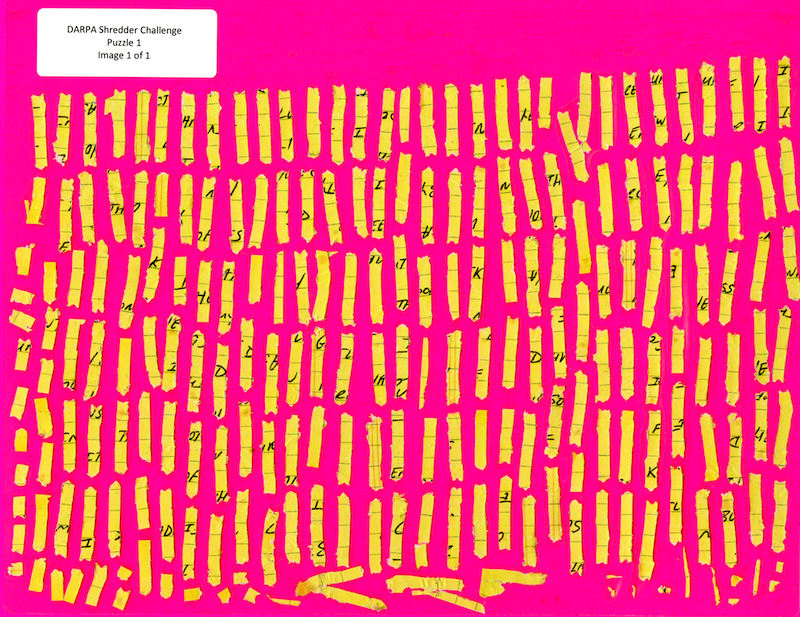
Deshredding tool

I’ve been playing with the DAPRA deshredding challenge. The challenge is to reconstruct the original text of a series of shredded pages (like the one shown above). That image is the easiest challenge, the fragments get progressively smaller, and the problem gets progressively harder. Computationally it seems rather tough! I wanted to post my work in progress and some details of the issues you encountered.

First of all, my current code base is here: https://github.com/new299/DS. There are a number of tools, all written and C++ and I’m afraid very badly and quickly hacked together.

ds_isolate: This tool isolates individual fragments from the image (image segmentation). It also tries to get all fragments in the same orientation. You can see an example output in the directory puzzle1
ds_orientate: This tool tries to get the fragments facing the right way. I.e. all “pointing” up.
ds_clean: This tool attempts create binary versions of the fragments, dividing the individual fragments into foreground/background pixels. It also create “edge_walk” files. These are walks around the edge of the fragment which contains 0 for a background pixel and 1 for a foreground pixel.
ds_align: This tool tries to align all the edge_walks. This is hard!
ds_qc: This is a SDL based tool for moving around and plaything with the fragments. It can also perform some alignment using the edge_walk files on the fly.

I built all this on a mac. If you want to do the same, you’ll need to install libtiff and SDL.

So, here’s my method in a little more detail:

ds_isolate – image segmentation

The segmentation progress is pretty straight forward, they’ve given us relatively nice clean images to play with. To segment I pick start pixels 10 pixel in from the edges of all corners. I then perform a random walk, only moving to pixels with a near RGB value. The distance function is simple euclidean distance.

I choose a limit of “10” because that seemed to work, pretty good enough. During the random walk I collect all the pixel I encounter and stick them in a vector. I let the random walks continue for 50,000,000 (that’s probably WAY more than required). I then take this set of pixels and expand it a little, adding all pixels within a difference of 10 in R,G,B space (quick and dirty).

I then remove (set to 0) all the pixels which have a value in that dataset. Once this is done I then extract all connected pixels that are non-0. Any fragments that are too small (say 20pixels), I throw out.
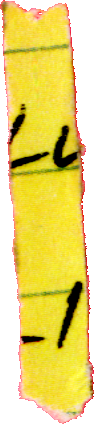
I think the segmentation there is pretty clean. On the right you can see a dark artifact, those artifacts are not always present, but are common enough to be annoying.

Now the images are segmented the individual fragments are stored in a directory as follows: OUTPUTDIR/fragment_N/original.tif

ds_orientate – Get the fragments in the correct orientation

You can see that the fragment above isn’t pointing straight up. I decided that it would make down stream processing much easier if all the fragments were in the same orientation. This is what ds_orientate does. The tool rotates the images, in increments of 0.01 radians. After each rotation it checks the width of the image. After all rotates we select the rotation which resulted in the minimal width. Because all the fragments are /kind of/ rectangular this should get them all “standing up”. However they could still be rotated by 180 degrees. So I then check if the “pointy” end is at the bottom, if it isn’t I rotate the image by 180 degrees.

Here’s the rotated image:

Again, this works pretty well. It breaks with some fragments, particularly those with deformed ends or those that are completely bent.

ds_clean – Cleaning fragments and extracting edge walks

This is where things start to get tricky. This tool attempts to divide the fragment in to foreground and background components. It takes the fragments and converts them to greyscale images, and simple thresholding function is them applied. I also have a function that specifically tries to repair linear features (the lines on the paper). However as you can see here, it hasn’t done a great job with the lines.

After thresholding the image, ds_clean performs edge walks along the edges of the fragment. It identifies the top left/right and bottom left/right corners. It then performs a pixel walk along the edge and produces a string e.g.

00000000000000000000000000000000000000000000000000111111111100000000000000000000000000000000000111111100000000000000000000000

Where 1s represent where the tool found a foreground pixel, 0s a background pixel. It writes those strings to files in the directory structure called “edge_walk”.

ds_align – Attempt to align all the fragment edges

ds_align takes all the edge_walk files and attempts to align the left and right sides against each other. It takes every overlap of each pair of strings and performs a weighted edit distance between them. It’s weighted so that foreground pixels count for more than background pixels. This results is a huge matrix of “what aligned best” for each fragment.

A work in progress

So, that’s where I got to so far. The alignment process works in /some/ cases, but isn’t great. I think perhaps I need to take fragment contours into account. However, I’m not sure how much more time I can devote to this project. Perhaps if someone out there wants to team up?? 🙂

A case that causes problems

This is the top hit for one of the fragments. It aligns really well because almost the whole edge is touching, and the black parts match on the top character!
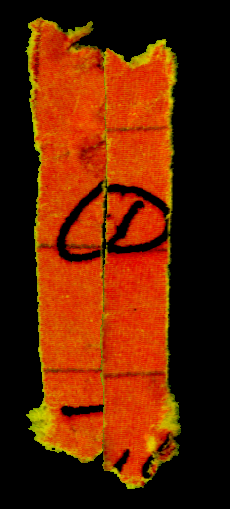
This is the correct alignment, but my code has it as the second hit. Thing like this will be a problem and are caused by the fact that the shredder doesn’t keep all the fragments in alignment (which is great from the shredder makers point of view of course). But because less of the edge is touching, it gets scored lower. Even though a human observer and see that this is the correct match.
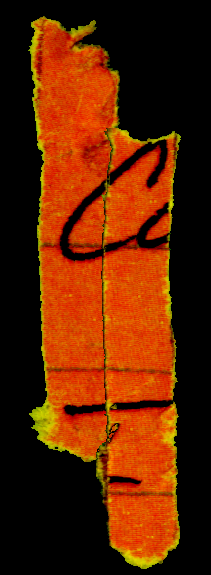
In this case I could possibly solve the problem by up weighting the foreground pixel scores. But the general case maybe more difficult. And I’m wondering if more about the shape of the character, and the direction of the lines near the edge of the fragment needs to be taken in to account.

Rotate image by 180 degrees (libtiff code)

Fastish inplace rotation of an image by 180 degrees:

  void rotate180() {

    size_t h;
    if((m_height%2) == 1) {
      h = (m_height/2)-1;
      size_t ymid = ((m_height-1)/2);

      for(size_t x=0;x<(m_width/2);x++) {
        swap_pixel(x,ymid,(m_width-x-1),ymid);
      }

    } else h = (m_height/2)-1;
    for(size_t x=0;x<m_width;x++) {
      for(size_t y=0;y<=h;y++) {
        swap_pixel(x,y,m_width-x-1,m_height-y-1);
      }
    }
  }

You need to provide image get and set, and swap_pixel. Complete example below:

#include "tiffio.h"
#include <iostream>
#include <math.h>
#include <vector>
#include <map>
#include <sys/stat.h>
#include <sys/types.h>
#include <sstream>
#include <stdexcept>

#define TIFFSetR(pixel, x) ((unsigned char *)pixel)[0] = x
#define TIFFSetG(pixel, x) ((unsigned char *)pixel)[1] = x
#define TIFFSetB(pixel, x) ((unsigned char *)pixel)[2] = x
#define TIFFSetA(pixel, x) ((unsigned char *)pixel)[3] = x


class BadConversion : public std::runtime_error {
public:
 BadConversion(const std::string& s)
      : std::runtime_error(s) {}
};

template<class _type>
inline std::string stringify(_type x)
{
  std::ostringstream o;
  if (!(o << std::fixed << x))
    throw BadConversion("stringify()");
  return o.str();
}

using namespace std;

class Image {

public:

  Image() {
  }

  enum fragment_type { frag_type_arrow, frag_type_rectange } ;

  void load_tiff(string input_filename) {

    m_image_data.clear();

    TIFF* tif = TIFFOpen(input_filename.c_str(), "r");
    if (tif) {
      uint32 w, h;
      size_t npixels;
      uint32* raster;

      TIFFGetField(tif, TIFFTAG_IMAGEWIDTH, &w);
      TIFFGetField(tif, TIFFTAG_IMAGELENGTH, &h);
      npixels = w * h;
      m_width = w;
      m_height = h;

      raster = (uint32*) _TIFFmalloc(npixels * sizeof (uint32));
      if (raster != NULL) {
	if (TIFFReadRGBAImageOriented(tif, w, h, raster,ORIENTATION_TOPLEFT, 0)) {
	  for(size_t n=0;n<npixels;n++) m_image_data.push_back(raster[n]);
	}
	_TIFFfree(raster);
      }
      TIFFClose(tif);
    }
  }

  void save_tiff_rgb(string output_filename) {
    TIFF *output_image;

    // Open the TIFF file
    if((output_image = TIFFOpen(output_filename.c_str(), "w")) == NULL){
      cerr << "Unable to write tif file: " << output_filename << endl;
    }

    // We need to set some values for basic tags before we can add any data
    TIFFSetField(output_image, TIFFTAG_IMAGEWIDTH, m_width);
    TIFFSetField(output_image, TIFFTAG_IMAGELENGTH, m_height);
    TIFFSetField(output_image, TIFFTAG_BITSPERSAMPLE, 8);
    TIFFSetField(output_image, TIFFTAG_SAMPLESPERPIXEL, 4);
    TIFFSetField(output_image, TIFFTAG_PLANARCONFIG, PLANARCONFIG_CONTIG);

    TIFFSetField(output_image, TIFFTAG_COMPRESSION, COMPRESSION_DEFLATE);
    TIFFSetField(output_image, TIFFTAG_PHOTOMETRIC, PHOTOMETRIC_RGB);

    // Write the information to the file
    TIFFWriteEncodedStrip(output_image, 0, &m_image_data[0], m_width*m_height * 4);

    // Close the file
    TIFFClose(output_image);
  }

  bool is_on_image(size_t x,size_t y) {
    if((x < m_width) && (y < m_height)) return true;
    return false;
  }

  uint32_t get(size_t x,size_t y) {
    return m_image_data[(y*m_width)+x];
  }

  void set(size_t x,size_t y,uint32_t value) {
    m_image_data[(y*m_width)+x] = value;
  }

  void swap_pixel(size_t x1,size_t y1,
                  size_t x2,size_t y2) {

    uint32_t t = get(x1,y1);
    set(x1,y1,get(x2,y2));
    set(x2,y2,t);
  }

  // Inplace 180 degree rotation.
  void rotate180() {

    size_t h;
    if((m_height%2) == 1) {
      h = (m_height/2)-1;
      size_t ymid = ((m_height-1)/2);

      for(size_t x=0;x<(m_width/2);x++) {
        swap_pixel(x,ymid,(m_width-x-1),ymid);
      }

    } else h = (m_height/2)-1;
    for(size_t x=0;x<m_width;x++) {
      for(size_t y=0;y<=h;y++) {
        swap_pixel(x,y,m_width-x-1,m_height-y-1);
      }
    }
  }

  vector<uint32_t> m_image_data;
  size_t m_width;
  size_t m_height;
};

int main(int argc, char* argv[]) {

  Image i;
  i.load_tiff(argv[1]);
  i.rotate180();
  i.save_tiff_rgb(string(argv[2]));
}

(A VERY BAD) Image rotation algorithm using libtiff

The following program rotates a tiff image. I pretty much made up the algorithm myself, and it relies on my rather dodgy trigonometry. There are almost certainly computationally less expensive ways of doing this.

Two methods are present, but the main function only uses (rotate_source). This iterates over pixels in the source image and places them in the correct location in the destination image. The alternative is to iterate over the destination image, this ensures there are no missing datapoints at the destination. However, this method is slower, and the result can look worse.

The disadvantage of the faster method is that there maybe gaps is the rotated image. To get round this I have a quick hack called “fill_gaps” which does some very lazy interpolation to fill in the gaps.

You can compile the code as:

g++ rotation.cpp -ltiff -o rotation

And then execute it as:

./rotation input.tif

The program will then write a series of files named imgN.tif where N is an integer. Each of these files will contain a rotated copy of the original image in 0.1 radian increments.

On a Mac you can use the following to get Preview to open all these files in one window, and display them in the correct order:

ls img*.tif | awk 'BEGIN{FS="g";}{print $0 " " $2}' |sort -n -k 2 | awk '{print $1}' | xargs open

#include “tiffio.h”
#include
#include
#include
#include

#include “stringify.h”
#include
#include
#include
#include
#include

class BadConversion : public std::runtime_error {
public:
BadConversion(const std::string& s)
: std::runtime_error(s) {}
};

template
inline std::string stringify(_type x)
{
std::ostringstream o;
if (!(o << std::fixed << x)) throw BadConversion("stringify()"); return o.str(); } #define TIFFSetR(pixel, x) ((unsigned char *)pixel)[0] = x #define TIFFSetG(pixel, x) ((unsigned char *)pixel)[1] = x #define TIFFSetB(pixel, x) ((unsigned char *)pixel)[2] = x #define TIFFSetA(pixel, x) ((unsigned char *)pixel)[3] = x using namespace std; void rotate_point(double x, double y, double o_x, double o_y, double radians, double &r_x, double &r_y) { //1. calculate theta //tan theta = opp (y) / adj (x) double dx = x - o_x; double dy = y - o_y; if(dx < 0) dx = 0-dx; if(dy < 0) dy = 0-dy; int q=1; if((x > o_x) && (y >= o_y)) q = 1;
if((x >= o_x) && (y < o_y)) q = 2; if((x < o_x) && (y <= o_y)) q = 3; if((x <= o_x) && (y > o_y)) q = 4;
double theta;
if(q == 1) theta = atan(dy/dx);
if(q == 2) theta = atan(dx/dy);
if(q == 3) theta = atan(dy/dx);
if(q == 4) theta = atan(dx/dy);

double h = sqrt(dx*dx + dy*dy);

if((dy==0) || (dx==0)) theta = 0;

theta -= radians;

for(;theta < 0;) { theta = 0 - theta; theta = ((2*3.14)/4) - theta; q++; if(q==5) q=1;} for(;theta > ((2*3.14)/4);) {theta -= ((2*3.14)/4); q–; if(q==0) q=4; }

if(q == 1) { r_y = (sin(theta) * h); r_x = (cos(theta) * h); }
if(q == 2) { r_x = (sin(theta) * h); r_y = (cos(theta) * h); }
if(q == 3) { r_y = (sin(theta) * h); r_x = (cos(theta) * h); }
if(q == 4) { r_x = (sin(theta) * h); r_y = (cos(theta) * h); }

if(q == 1) {r_x = o_x + r_x; r_y = o_y + r_y;}
if(q == 2) {r_x = o_x + r_x; r_y = o_y – r_y;}
if(q == 3) {r_x = o_x – r_x; r_y = o_y – r_y;}
if(q == 4) {r_x = o_x – r_x; r_y = o_y + r_y;}

}

class Image {

public:

Image() {
}

void load_tiff(string input_filename) {

m_image_data.clear();

TIFF* tif = TIFFOpen(input_filename.c_str(), “r”);
if (tif) {
uint32 w, h;
size_t npixels;
uint32* raster;

TIFFGetField(tif, TIFFTAG_IMAGEWIDTH, &w);
TIFFGetField(tif, TIFFTAG_IMAGELENGTH, &h);
npixels = w * h;
m_width = w;
m_height = h;

raster = (uint32*) _TIFFmalloc(npixels * sizeof (uint32));
if (raster != NULL) {
if (TIFFReadRGBAImageOriented(tif, w, h, raster,ORIENTATION_TOPLEFT, 0)) {
for(size_t n=0;n(m_width*m_height,0);
}

Image rotate(size_t o_x,size_t o_y,double radians,uint32_t bg_val) {
return rotate_source(o_x,o_y,radians,bg_val);
}

Image rotate_source(size_t o_x,size_t o_y,double radians,uint32_t bg_val) {

Image new_image; // image to copy data in to

size_t pad;
if(m_width > m_height) pad = m_width;
else pad = m_height;
new_image.m_width = pad*4;
new_image.m_height = pad*4;
new_image.zero_image();

for(uint32_t cx=0;cx adjs;
adjs.push_back(get(x+1,y));
adjs.push_back(get(x-1,y));
adjs.push_back(get(x,y+1));
adjs.push_back(get(x,y-1));

int perform_set=0;
for(size_t n=0;n m_height) pad = m_width;
else pad = m_height;
new_image.m_width = pad*4;
new_image.m_height = pad*4;
new_image.zero_image();

for(int32_t cx=0-pad;cx m_image_data;
size_t m_width;
size_t m_height;
};

int main(int argc, char* argv[]) {

Image i;
i.load_tiff(string(argv[1]));

int n=0;
for(double r=0;r<(2*3.141);r+=0.1) { //Image i2 = i.rotate(i.m_width/2,i.m_height/2,1.78525,0); Image i2 = i.rotate(i.m_width/2,i.m_height/2,r,0); //Image i2 = i.rotate(0,0,r,0); for(int x=0;x<10;x++) { for(int y=0;y<10;y++) { i2.set(x,y,0xFFFFFFFF); } } i2.fill_gaps(0); i2.save_tiff_rgb(string("img") + stringify(n) + string(".tif")); n++; } } [/sourcecode]

libtiff RGB image to greyscale + loading and saving

This example shows you how to load a RGB tiff image, convert it to greyscale and save it as 32 and 8bit greyscale images. It will also write the same RGB image to another file.

#include "tiffio.h"
#include <iostream>
#include <math.h>
#include <vector>

using namespace std;

class Image {

public:

  Image() {
  }

  void load_tiff(string input_filename) {

    m_image_data.clear();

    TIFF* tif = TIFFOpen(input_filename.c_str(), "r");
    if (tif) {
      uint32 w, h;
      size_t npixels;
      uint32* raster;

      TIFFGetField(tif, TIFFTAG_IMAGEWIDTH, &w);
      TIFFGetField(tif, TIFFTAG_IMAGELENGTH, &h);
      npixels = w * h;
      m_width = w;
      m_height = h;

      raster = (uint32*) _TIFFmalloc(npixels * sizeof (uint32));
      if (raster != NULL) {
	if (TIFFReadRGBAImageOriented(tif, w, h, raster,ORIENTATION_TOPLEFT, 0)) {
	  for(size_t n=0;n<npixels;n++) m_image_data.push_back(raster&#91;n&#93;);
	}
	_TIFFfree(raster);
      }
      TIFFClose(tif);
    }
  }

  void save_tiff_rgb(string output_filename) {
    TIFF *output_image;

    // Open the TIFF file
    if((output_image = TIFFOpen(output_filename.c_str(), "w")) == NULL){
      cerr << "Unable to write tif file: " << output_filename << endl;
    }

    // We need to set some values for basic tags before we can add any data
    TIFFSetField(output_image, TIFFTAG_IMAGEWIDTH, m_width);
    TIFFSetField(output_image, TIFFTAG_IMAGELENGTH, m_height);
    TIFFSetField(output_image, TIFFTAG_BITSPERSAMPLE, 8);
    TIFFSetField(output_image, TIFFTAG_SAMPLESPERPIXEL, 4);
    TIFFSetField(output_image, TIFFTAG_PLANARCONFIG, PLANARCONFIG_CONTIG);

    TIFFSetField(output_image, TIFFTAG_COMPRESSION, COMPRESSION_DEFLATE);
    TIFFSetField(output_image, TIFFTAG_PHOTOMETRIC, PHOTOMETRIC_RGB);

    // Write the information to the file
    TIFFWriteEncodedStrip(output_image, 0, &m_image_data&#91;0&#93;, m_width*m_height * 4);

    // Close the file
    TIFFClose(output_image);
  }

  void save_tiff_grey_32bit(string output_filename) {
    TIFF *output_image;

    // Open the TIFF file
    if((output_image = TIFFOpen(output_filename.c_str(), "w")) == NULL){
      cerr << "Unable to write tif file: " << output_filename << endl;
    }

    // We need to set some values for basic tags before we can add any data
    TIFFSetField(output_image, TIFFTAG_IMAGEWIDTH, m_width);
    TIFFSetField(output_image, TIFFTAG_IMAGELENGTH, m_height);
    TIFFSetField(output_image, TIFFTAG_BITSPERSAMPLE, 32);
    TIFFSetField(output_image, TIFFTAG_SAMPLESPERPIXEL, 1);
    TIFFSetField(output_image, TIFFTAG_PLANARCONFIG, PLANARCONFIG_CONTIG);

    TIFFSetField(output_image, TIFFTAG_COMPRESSION, COMPRESSION_DEFLATE);
    TIFFSetField(output_image, TIFFTAG_PHOTOMETRIC, PHOTOMETRIC_MINISBLACK);

    // Write the information to the file
    TIFFWriteEncodedStrip(output_image, 0, &m_image_data&#91;0&#93;, m_width*m_height * 4);

    // Close the file
    TIFFClose(output_image);
  }

  void save_tiff_grey_8bit(string output_filename) {
    TIFF *output_image;

    // Open the TIFF file
    if((output_image = TIFFOpen(output_filename.c_str(), "w")) == NULL){
      cerr << "Unable to write tif file: " << output_filename << endl;
    }

    // We need to set some values for basic tags before we can add any data
    TIFFSetField(output_image, TIFFTAG_IMAGEWIDTH, m_width);
    TIFFSetField(output_image, TIFFTAG_IMAGELENGTH, m_height);
    TIFFSetField(output_image, TIFFTAG_BITSPERSAMPLE, 8);
    TIFFSetField(output_image, TIFFTAG_SAMPLESPERPIXEL, 1);
    TIFFSetField(output_image, TIFFTAG_PLANARCONFIG, PLANARCONFIG_CONTIG);

    TIFFSetField(output_image, TIFFTAG_COMPRESSION, COMPRESSION_DEFLATE);
    TIFFSetField(output_image, TIFFTAG_PHOTOMETRIC, PHOTOMETRIC_MINISWHITE);

    // convert data to 8bit
    vector<uint8_t> data;
    for(size_t n=0;n<m_image_data.size();n++) {
      data.push_back(255-(m_image_data&#91;n&#93;/(256*256*256)));
    }

    // Write the information to the file
    TIFFWriteEncodedStrip(output_image, 0, &data&#91;0&#93;, m_width*m_height);

    // Close the file
    TIFFClose(output_image);
  }

  void make_greyscale() {

    for(size_t n=0;n<m_image_data.size();n++) {

      double r = TIFFGetR(m_image_data&#91;n&#93;);
      double g = TIFFGetG(m_image_data&#91;n&#93;);
      double b = TIFFGetB(m_image_data&#91;n&#93;);

      double grey = (0.3*r) + (0.59*g) + (0.11*b); // See http://en.wikipedia.org/wiki/Grayscale
      m_image_data&#91;n&#93; = grey * 256 * 256 * 256;
    }
  }

  vector<uint32_t> m_image_data;
  size_t m_width;
  size_t m_height;
};

int main(int argc, char* argv[])
{

  Image input;

  input.load_tiff(string(argv[1]));
  input.save_tiff_rgb(string(argv[2]));
  input.make_greyscale();
  input.save_tiff_grey_32bit(string(argv[3]));
  input.save_tiff_grey_8bit(string(argv[4]));
}

Compile as:

g++ makegrey.cpp -ltiff

And run as:

./a.out inputfilename.tif rgb.tif 8bitgrey.tif 32bitgrey.tif

Note: The 8bit version is slightly different than the 32bit version. It converts the data such that 0 represents white. This is because Preview.app, at least in MacOS X Lion, does not seem to be able to cope with 0 being black.

This has not been applied to the 32bit output, so this will display incorrectly in Preview. However it will display correctly in Imagemagick.