Finding the majority element in a list

The problem is to find the majority element in a list if one exists. That is, return the element that occurs occupies >50% of the positions in the list. Additional constraints are that the algorithm should operate in linear time and use constant additional space ( O(N) time and O(1) space).

There are a few way of solving this problem. Initially I thought one solution might be to Radix sort the list in-place and then search for the longest run. This would certainly be linear time but in-place Radix sort it a bit of a pain.

Turns out there’s an easier solution called Moore’s Linear Time Majority Vote Algorithm. You can find a nice description here. The algorithm works iteratively. The first element is selected as the initial candidate and it’s count is set to 1. The algorithm then iterates over the remaining elements if the element matches the candidate it’s count is increased, if the count falls to zero the candidate is replaced with the current element (and the count set to 1). In this way the algorithm cancels out elements as it goes. If the element was the true majority item, then reducing the count just canceled out the non-majority element, and the element remains the majority item in the remainder of the array. If it wasn’t then we simply removed two non-majority items which does not effect the result.

The algorithm will result in a candidate, but we still need to test to make sure that it is actually the majority item. If there was no majority item canceling out “two non-majority” items above will effect the result. So we make a single pass over the array and count the number of occurrences of the candidate and test if this is >50%.

A C++ implementation of the algorithm is shown below:

#include <iostream>
#include <vector>
#include <stdlib.h>

using namespace std;

int find_candidate(vector<int> &data) {

int candidate=0;
int count=0;

candidate=data[0];
count = 1;

for(int n=1;n<data.size();n++) {
if(data[n] == candidate) count++;
else count–;

if(count==0) {candidate=data[n]; count=1;}
cout << "count: " << count << endl;
}

return candidate;
}

int main() {

vector<int> data;

srand(time(NULL));
for(int n=0;n<10;n++) data.push_back(rand()%5);
cout << "data: ";
for(int n=0;n<data.size();n++) cout << data[n] << " ";
cout << endl;

int candidate = find_candidate(data);
cout << "candidate: " << candidate << endl;

int count=0;
for(int n=0;n<data.size();n++) if(data[n] == candidate) count++;

if(count > (data.size()/2)) cout << "Majority item is: " << candidate << endl;
else cout << "No majority item" << endl;

}
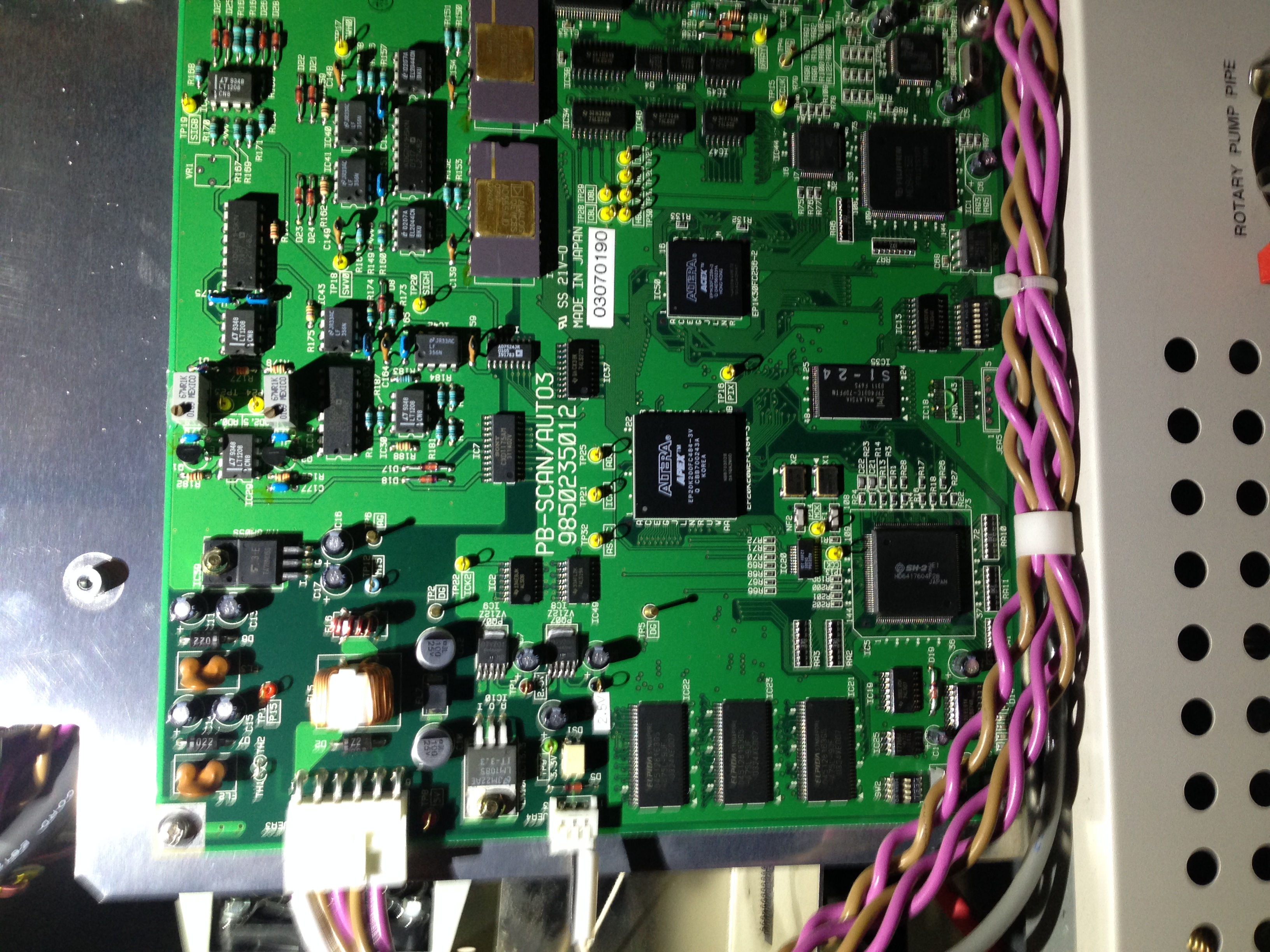
Keyence VE7800 PCB Pics

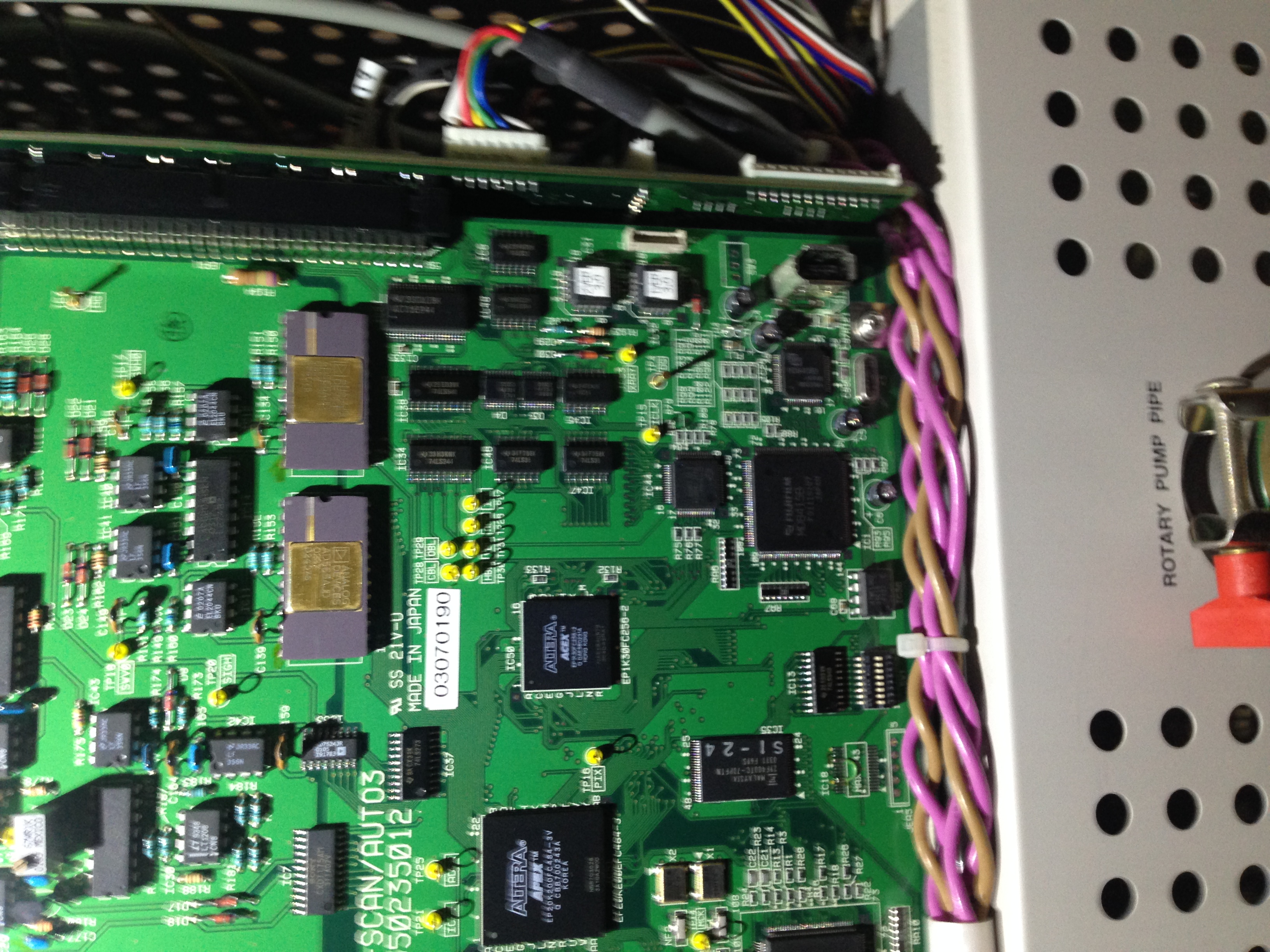
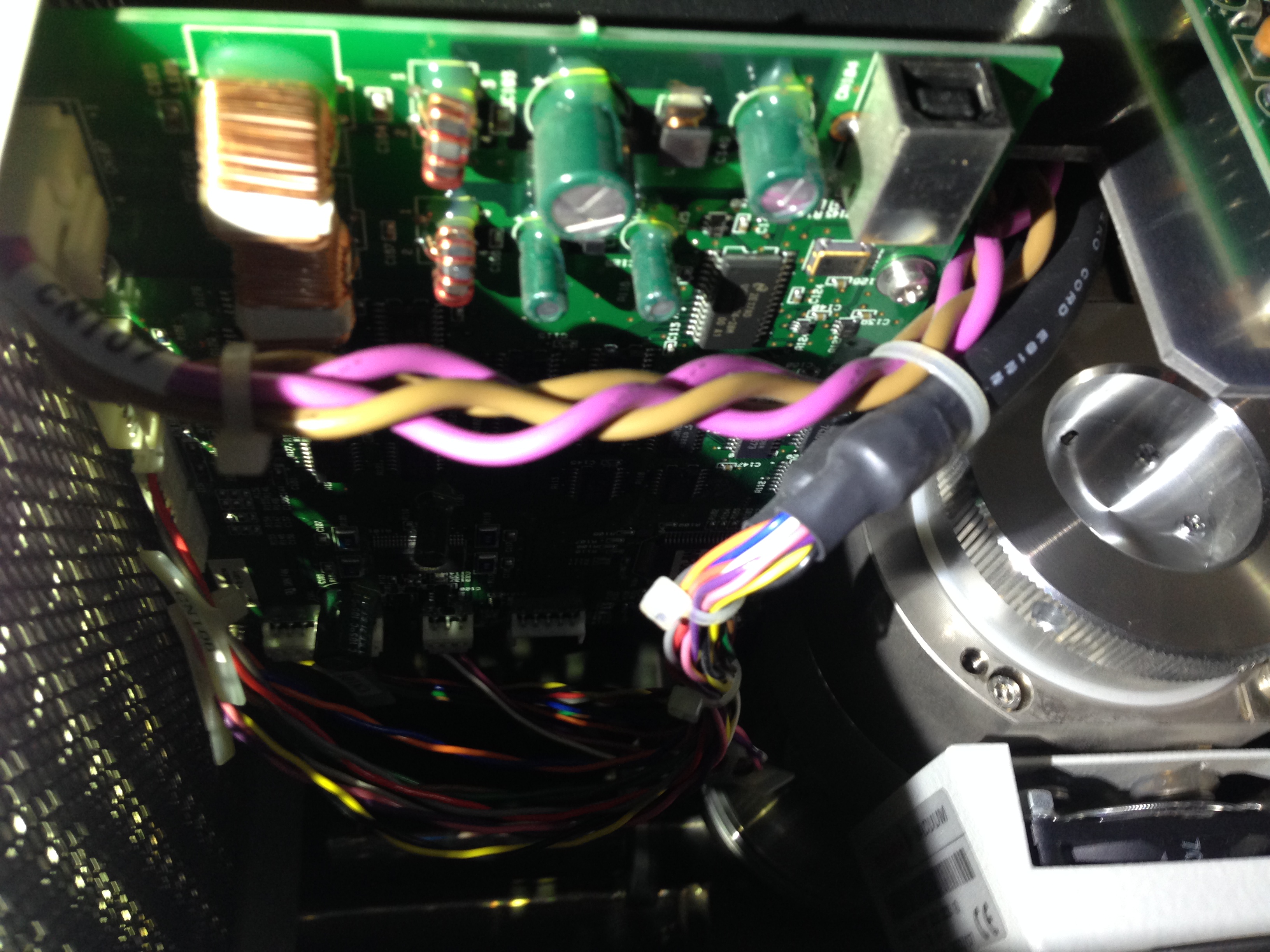
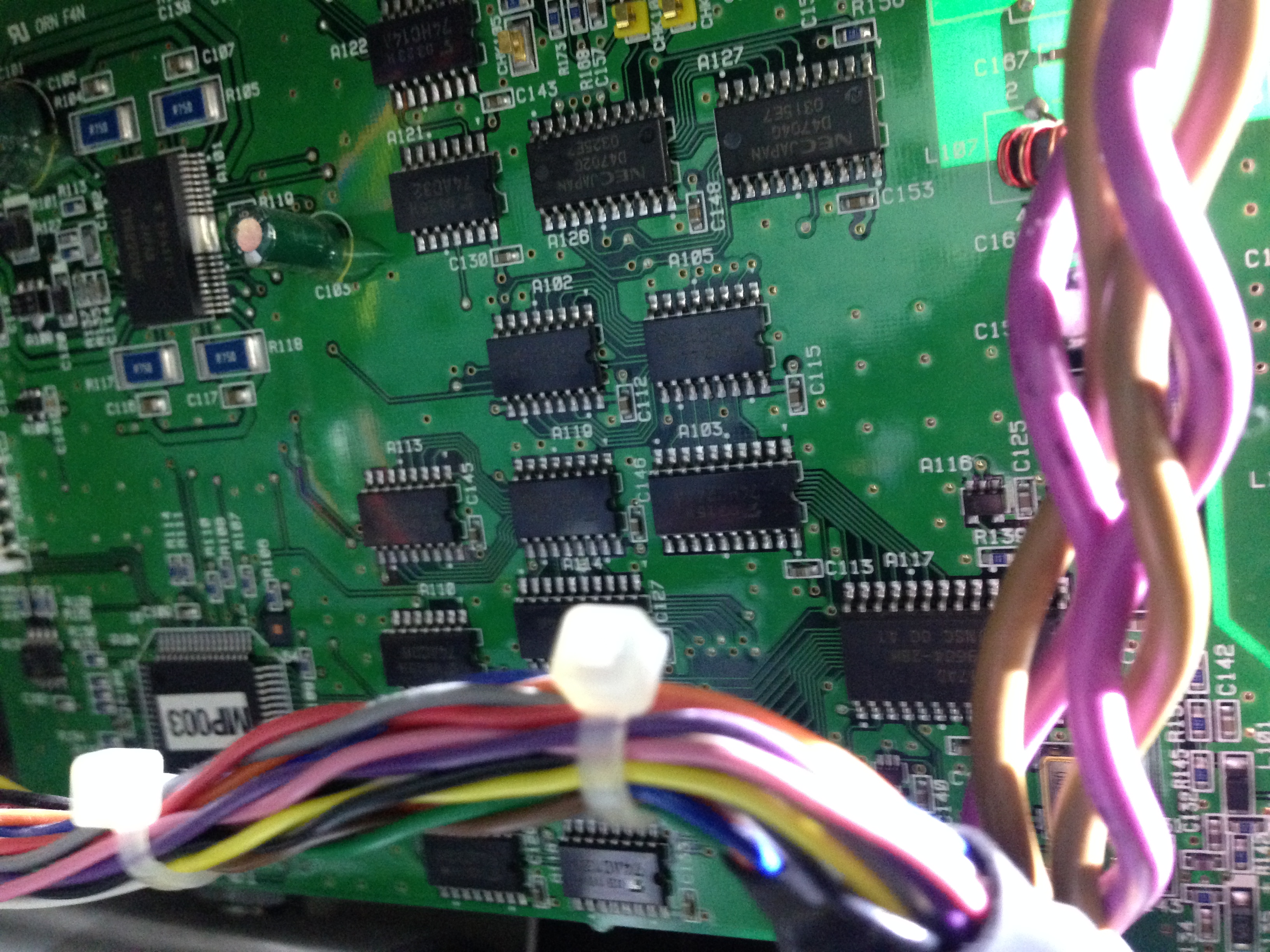
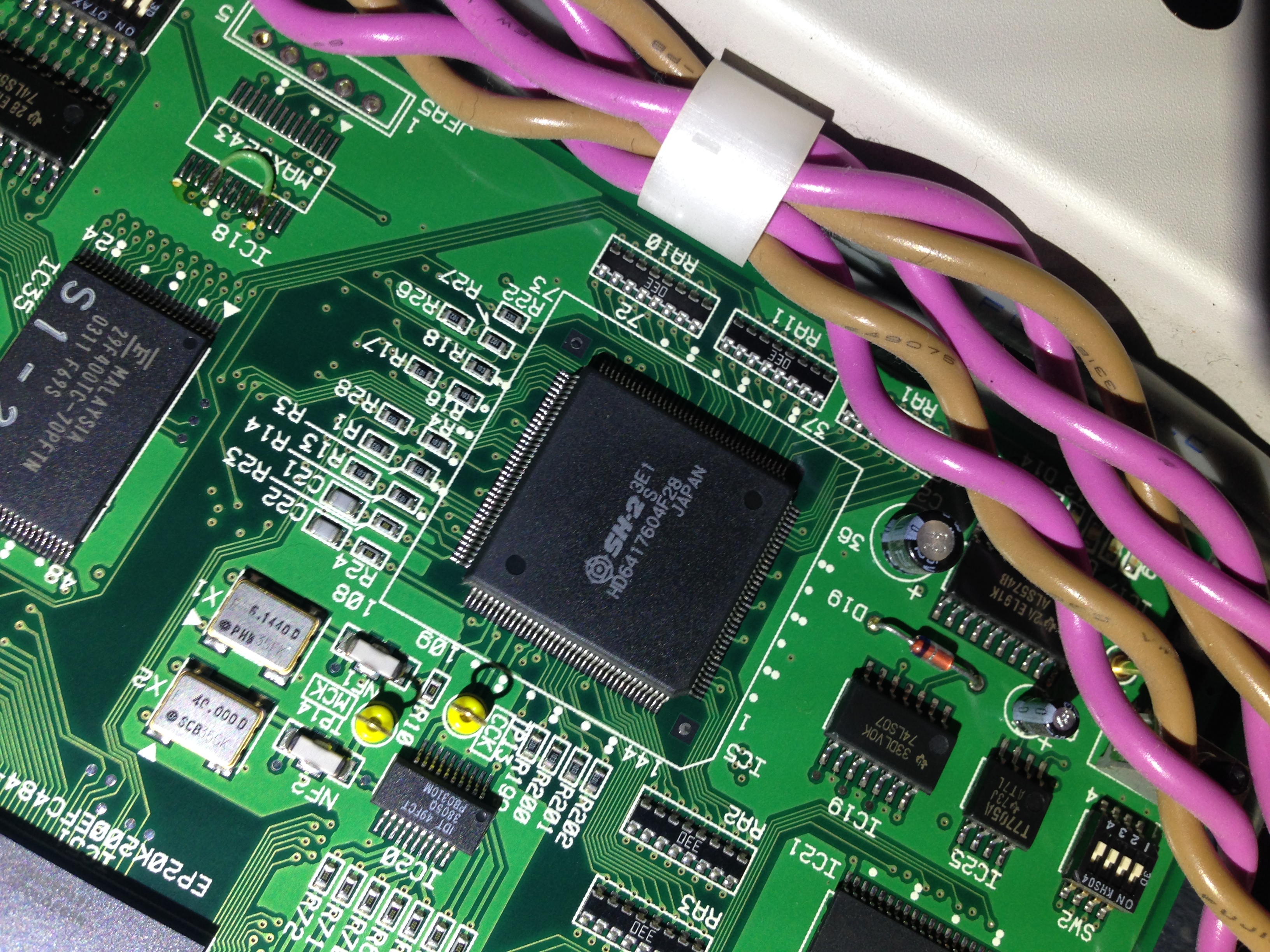
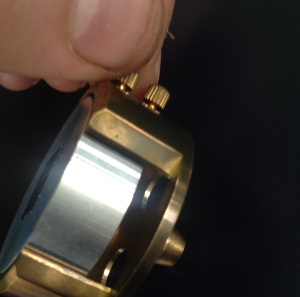
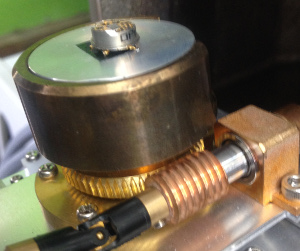
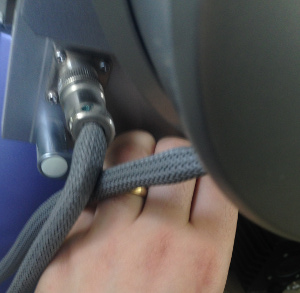
I couldn’t really resist taking a quick look inside the SEM. The instrument connects to the host PC over USB and firewire. These go to two separate boards inside the instrument. We removed the USB connection during operation and saw that images were still being acquired. It’s reasonable to assume that the firewire connection is used for image acquisition only, and that all control signals go over the USB connection. The USB device ID is 0720:1005.

Below are some quick snaps of the PCBs for reference.

photo 1

photo 2

photo 3

photo 4

photo 5

Keyence VE7800 Operating Procedure

  1. Turn on the keyence ve7800, the chamber should be closed, and have partial vacuum from the last time it was operated.
    turnon
  2. Turn on PC.
    turnon_pc
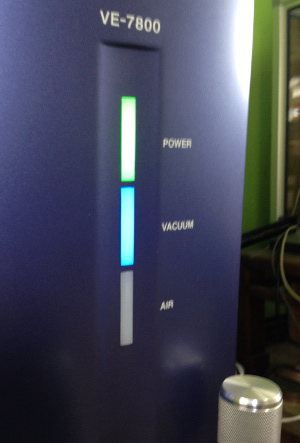
  3. Wait to vacuum light on the VE7800 to stop flashing. The vacuum light should be solid blue. This will take approximately 5 minutes.
    vacuum_ok
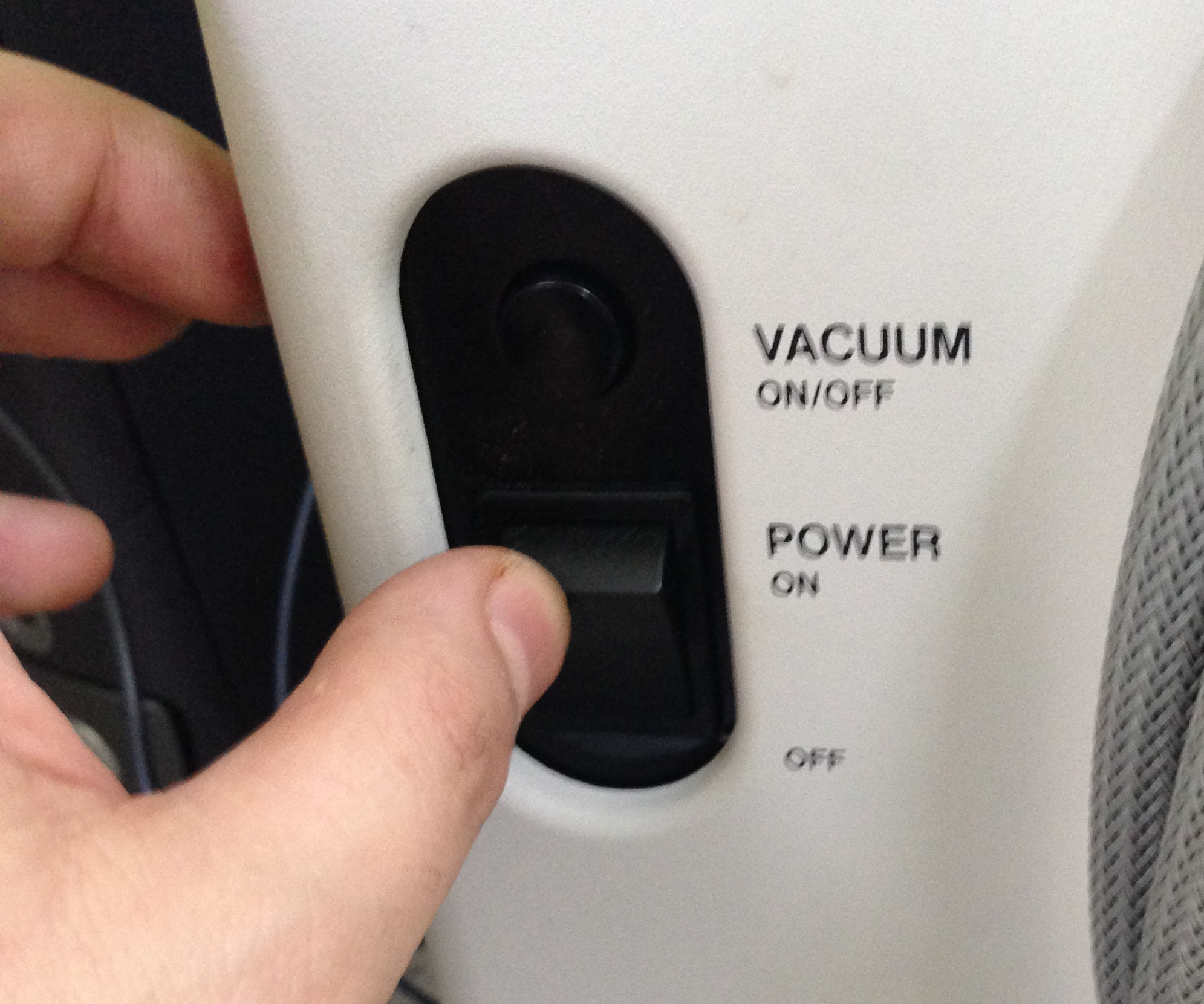
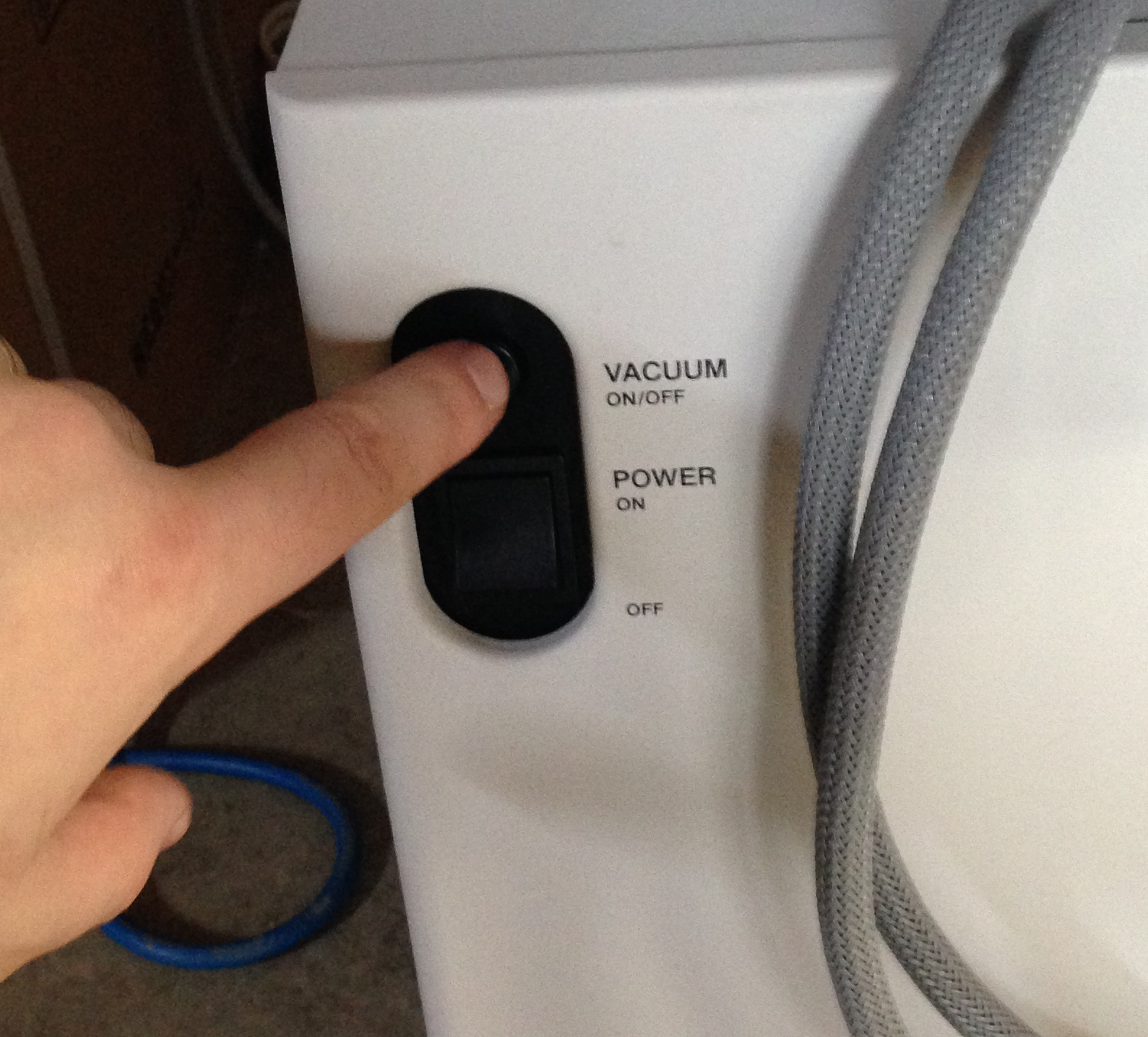
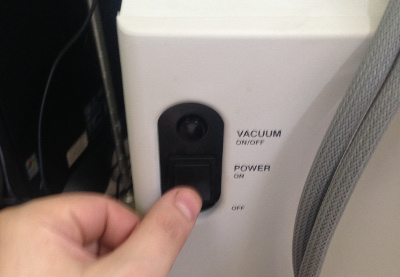
  4. Press and hold the “Vacuum on/off” button for 2 seconds.
    vacuum_button
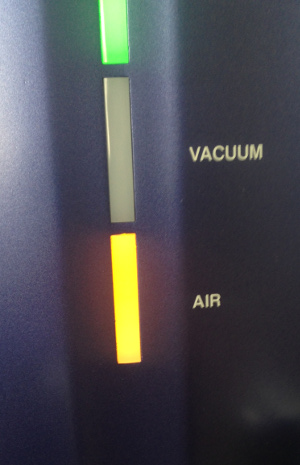
  5. Wait ~45 seconds while the vacuum bleeds. During this process the air light should be illuminated.
    air_led
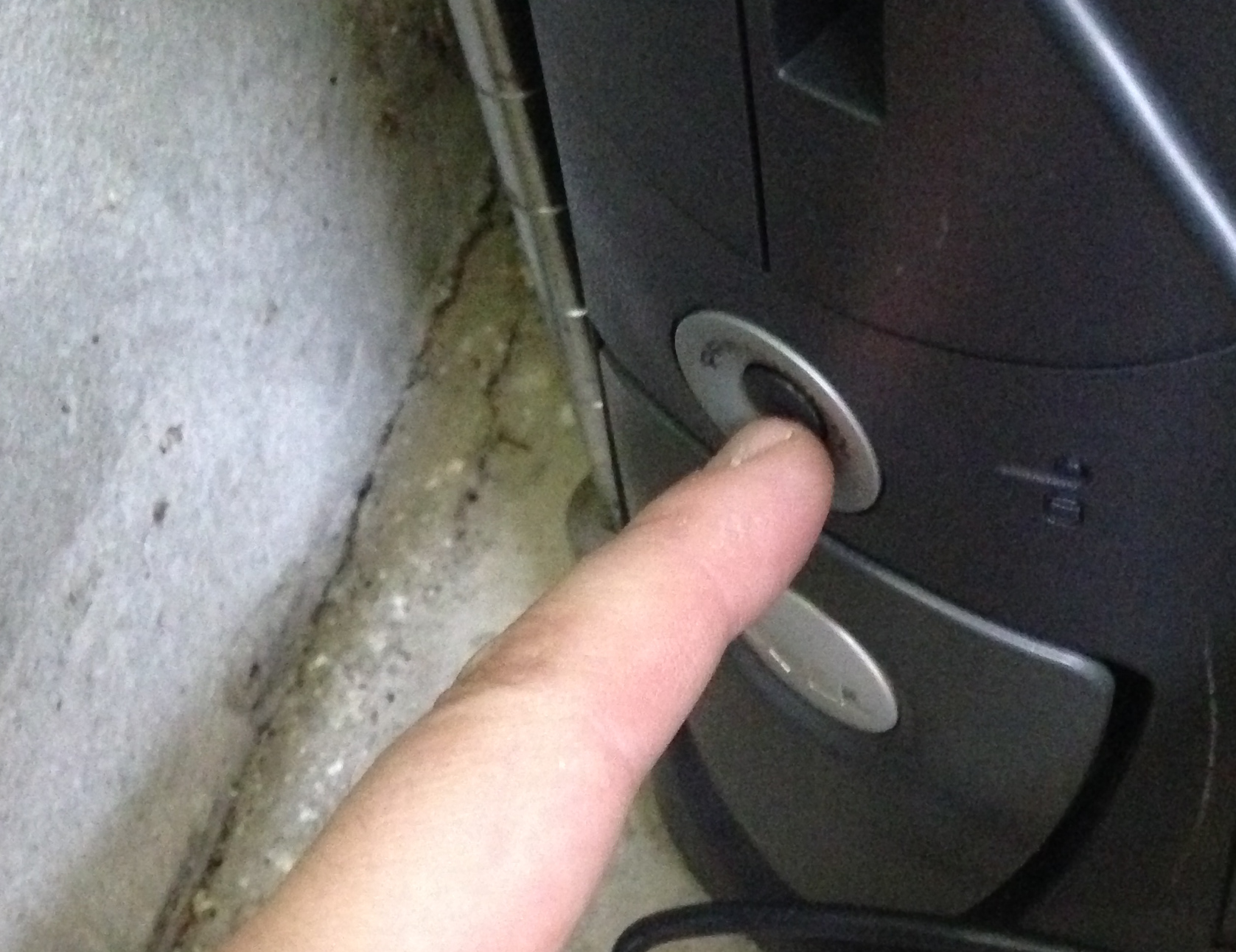
  6. Open the chamber using the handle DO NOT USE ANY OTHER FIXTURES
    open_cham
  7. Remove the specimen table (it is not fixed in place and can easy be removed)
    specimen_table
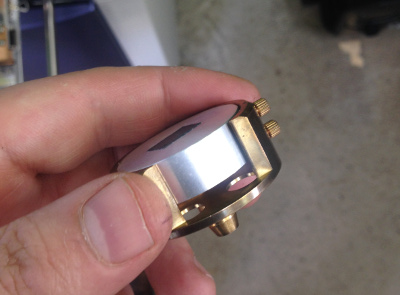
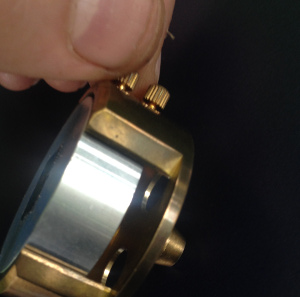
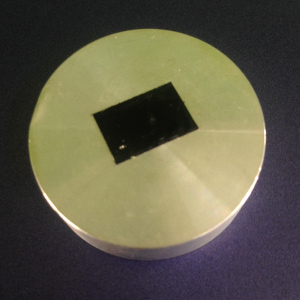
  8. Remove the stub (aluminum disc) the thumb screws should only be hand tight.
    tablescrew1

    alu_stub

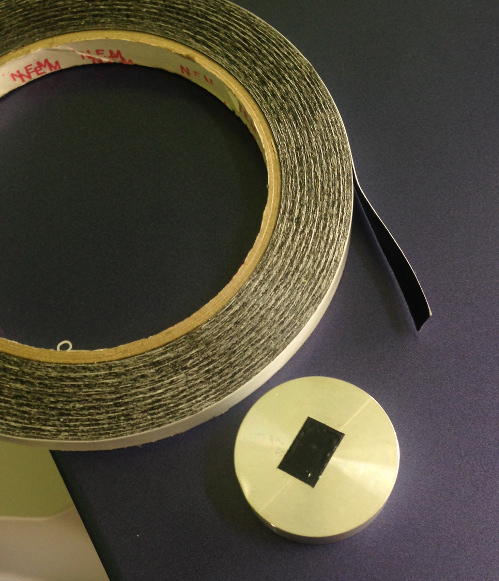
  9. Replace the carbon tape if required (a roll should be in the SEM consumables box by the SEM).
    carbon_tape

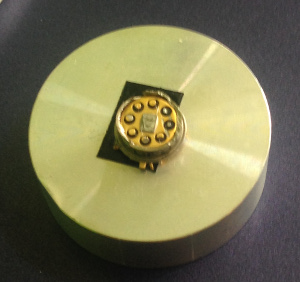
  10. Firmly attach the sample to the aluminum stub. Ideally the conductive layer of the sample should make contact with the carbon tape.
    sample_set
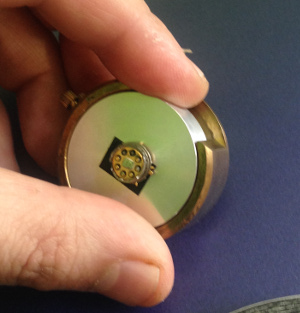
  11. Place the aluminum stub in the sample table. Make should the top of the stub is level with the top of the table and use the thumb screws to screw the stub in place.
    table_sample

    tablescrew1

  12. Place the sample table in the device.
    sample_in_place
  13. Close the chamber use the handle, do not use other fixtures
    close_chamber
  14. Press and hold the “Vacuum on/off” button for 2 seconds.
    vacuum_button
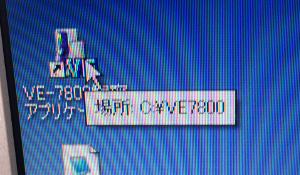
  15. Start the ve-7800 software (the icon is on the desktop)
    sem_soft
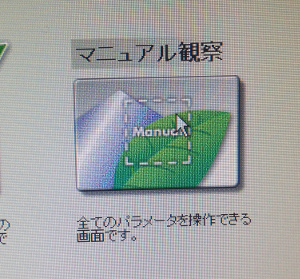
  16. Select manual mode in the software (other modes require more Japanese language skills).
    sem_manual
  17. Wait for the blue vacuum light on the ve7800 to stop flashing.
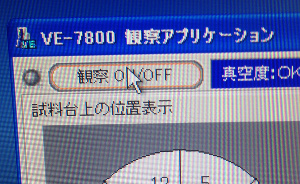
  18. Click the “Beam on/off” toggle button in the application software
  19. beamon

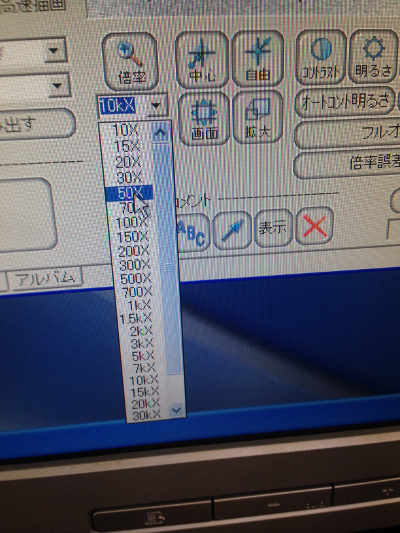
  20. Select 50x magnification
    set_mag
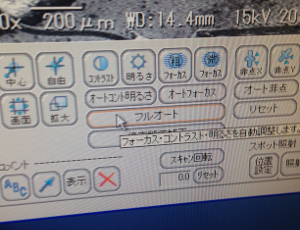
  21. Press the “full auto” button.
    fullauto

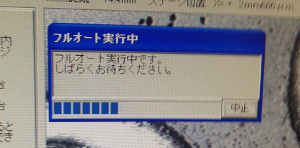
  22. The following dialog will appear, wait for the parameter optimization process to complete. Full auto will attempt to algorithmically determine the optimal voltage,focus and contrast for the sample.
    fullauto_dialog
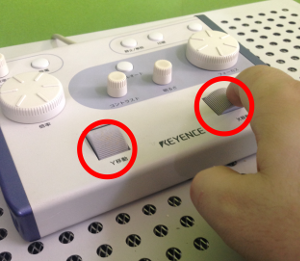
  23. Use the X and Y dial on the interface pad to move to a region of interest.
    sem_controlsXY

  24. When moving though the image, press “full auto” when the image quality appears poor.
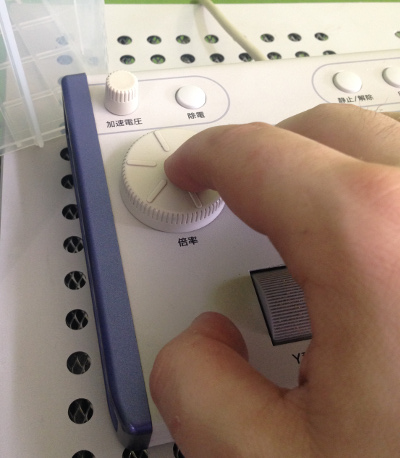
  25. To increase magnification, either use the pulldown menu, or the dial on the rotary pad shown below.
    zoomdial
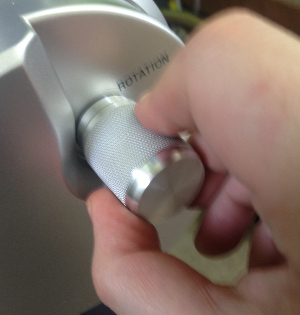
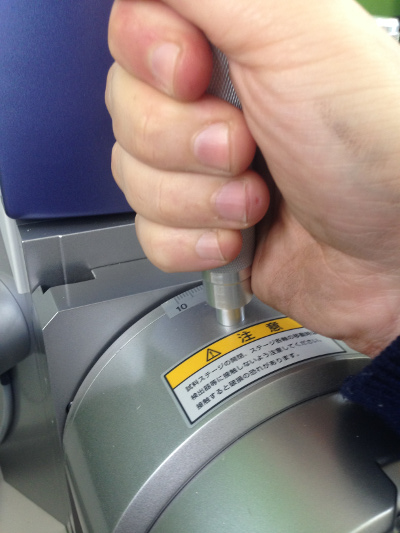
  26. During observation you may wish to rotate or tilt the sample. These operations can be performed directly using the knobs on the SEM.rotate_knob
    tilt
  27. See further instructions below or acquiring and saving a high resolution image

Shutdown procedure

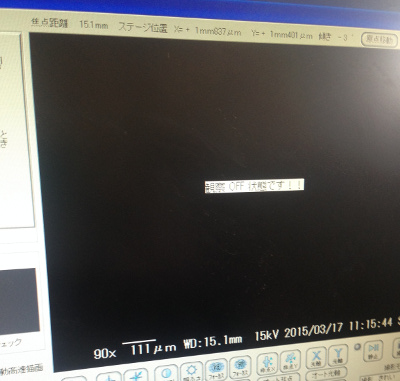
  1. Click the top left button to turn off the beam. The imaging area will go dark and display the message shown below.
    beamon
    beam_off
  2. Press “vacuum on/off” on the ve7800 for approximately 2 seconds.
  3. Press and hold the “Vacuum on/off” button for 2 seconds.
    vacuum_button
  4. Wait 45 seconds for the vacuum to bleed.
  5. Open the sample chamber. only use the handle not the fixtures of knobs to open the chamber
  6. Remove the sample
  7. Close the chamber
  8. Press “vacuum on/off” for approximately 2 seconds. The vacuum light should start of blink. Wait until the vacuum light stops flashing and is illuminated solid blue.
  9. Turn off the ve7800.
    semoff

  10. Shutdown the software and turn off the PC

Saving an image

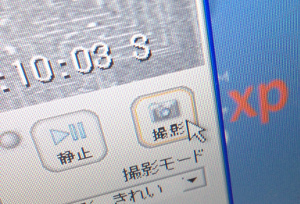
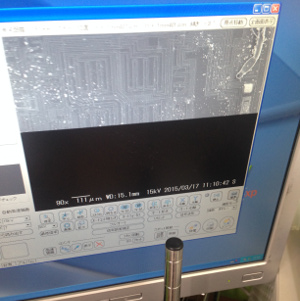
  1. One you have located a region where you like to acquire a high resolution image click the “take picture” button.take_pic
  2. You’ll need to wait approximately 1 minute for acquisition. The image will slowly appear on the screen during acquisition. Try not to knock the SEM, as vibration will cause more issues at this point.
    acquiring
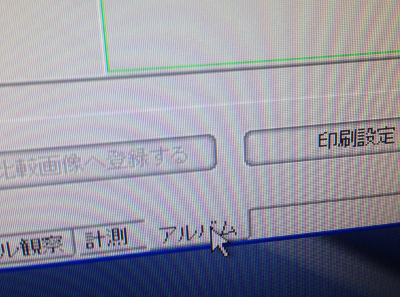
  3. Select the album tab
    album_tab
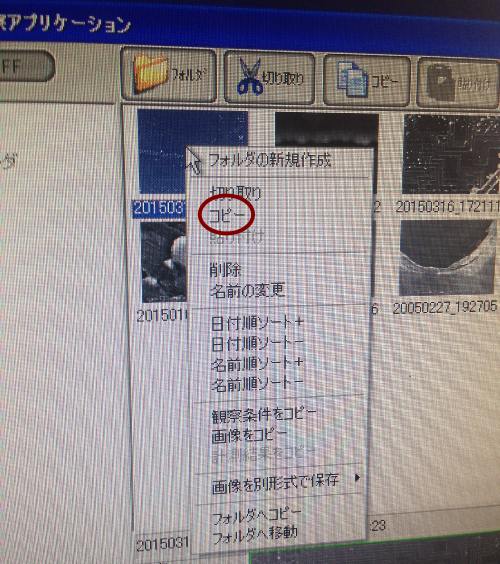
  4. Select the image you just acquire and right click “copy” (コピー).
    image10
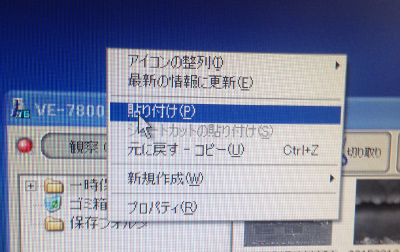
  5. Right click on the desktop or a USB drive and click “paste”:
    paste_file
  6. Click the manual tab to return to the main view:
    manual_tab

esp8266 and kr580vm80a image maps

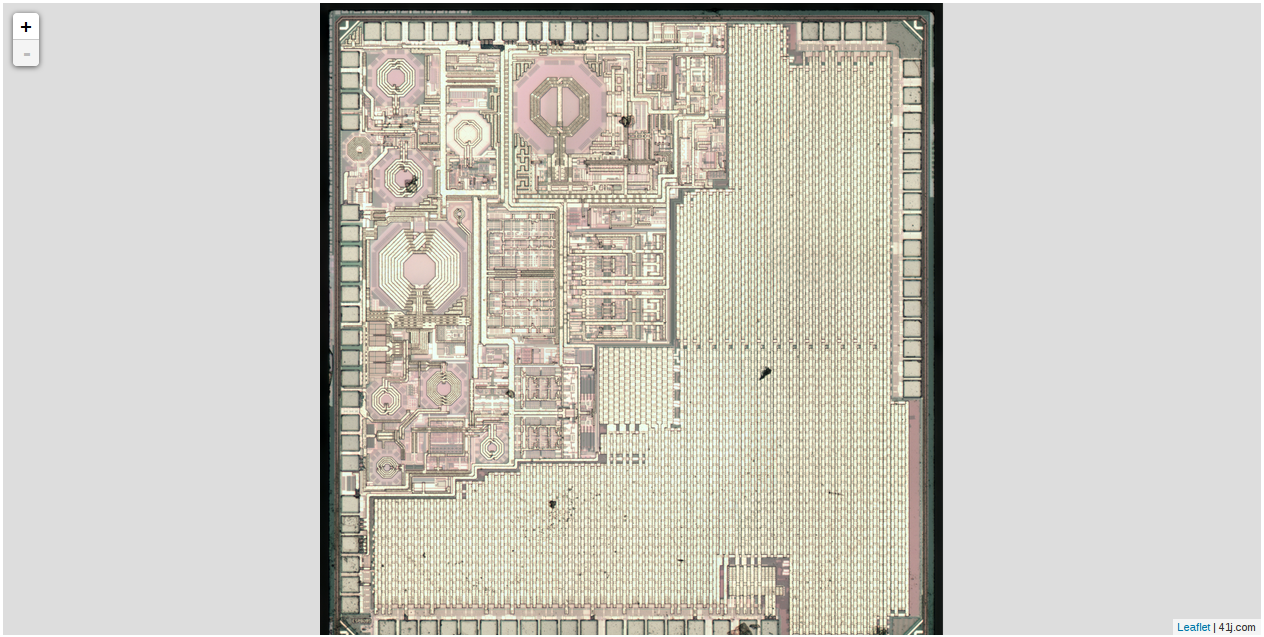
esp8266_slip

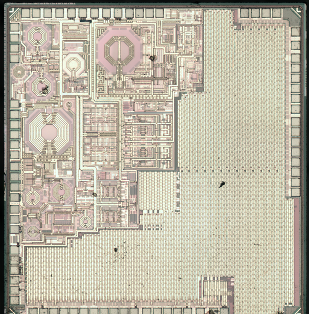
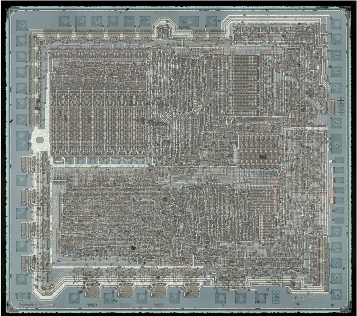
I’ve been playing around with LeafletJS and decided to create slippy map versions of a couple of the Zeptobar IC image sets. They’re available here:


esp_sm
esp8266

kr_sm
kr580vm80a