Archive for the ‘Uncategorized’ Category.

Solving tic-tac-toe (Noughts and crosses)

The following is a simple recursive solver for tic-tac-toe games, which I used to answer a Quora question. It’s hardcoded to solve the board:

OO_
___
XX_

Here’s the code:

#include <vector>
#include <iostream>

using namespace std;

void dump_board(vector<vector<int> > &board) {

  for(size_t y=0;y<board.size();y++) {
    for(size_t x=0;x<board.size();x++) {
      if(board[x][y] == 0) cout << "_";
      if(board[x][y] == 1) cout << "O";
      if(board[x][y] == 2) cout << "X";
    }
    cout << endl;
  }
  cout << endl;
}

class Move {

public:

  Move() {}

  Move(int x_in,int y_in) : x(x_in), y(y_in) {}

  int x;
  int y;
};


int check_win(vector<vector<int> > &board) {

  // cols
  for(int x=0;x<board.size();x++) {
    bool win=true;
    for(int y=0;y<board[x].size();y++) {
      if(board[x][y] != board[x][0]) win = false;
    }
    if((board[x][0] != 0) && (win == true)) return board[x][0];
  }

  // rows
  for(int y=0;y<board.size();y++) {
    bool win=true;
    for(int x=0;x<board.size();x++) {
      if(board[x][y] != board[0][y]) win = false;
    }
    if((board[0][y] != 0) && (win == true)) return board[0][y];
  }

  // diags
  if((board[0][0] == board[1][1]) && (board[0][0] == board[2][2])) return board[0][0];
  if((board[0][2] == board[1][1]) && (board[0][2] == board[2][0])) return board[0][2];

  return -1;
}

vector<Move> get_available_moves(vector<vector<int> > &board) {

  vector<Move> moves;

  for(size_t x=0;x<board.size();x++) {
    for(size_t y=0;y<board[x].size();y++) {
      if(board[x][y] == 0) moves.push_back(Move(x,y));
    }
  }

  return moves;
}

int play(int player,vector<vector<int> > board) {
  vector<Move> moves = get_available_moves(board);

  for(size_t n=0;n<moves.size();n++) {
    vector<vector<int> > n_board = board;
    n_board[moves[n].x][moves[n].y] = player;
    int win = check_win(n_board);
    if(win == 2) dump_board(n_board);

    if(win == -1) {

      if(player == 1) player = 2; else player = 1;
      play(player,n_board);
    }
  }
}


int main(int argc,char **argv) {

  vector<vector<int> > board(3,vector<int>(3,0));

  board[0][0] = 1;
  board[1][0] = 1;
  board[0][2] = 2;
  board[1][2] = 2;

  dump_board(board);

  play(2,board);
}

And the solutions found were:


OOX
XOO
XXX

OOX
XO_
XXX

OO_
XO_
XXX

OOX
XOX
XXX

OOX
X_X
XXX

OOX
XX_
XXO

OOX
XXO
XXO

OO_
X__
XXX

OO_
XO_
XXX

OO_
_O_
XXX

OOX
OX_
XX_

OOX
OOX
XXX

OOX
O_X
XXX

OOX
OX_
XXO

OOX
_X_
XX_

OOX
OXX
XX_

OOX
O_X
XXX

OOX
_XX
XX_

OOX
__X
XXX

OOX
XXO
XXO

OOX
XOO
XXX

OOX
X_O
XXX

OOX
OXO
XX_

OOX
O_O
XXX

OOX
_XO
XX_

OOX
__O
XXX

OO_
___
XXX
GCC detect 32 or 64 bit system

For example:

#include <iostream>

#if __x86_64__
#define ENV64BIT
#else
#define ENV32BIT
#endif

using namespace std;

int main() {

  #ifdef ENV64BIT
  cout << "64 bit" << endl;
  #endif

  #ifdef ENV32BIT
  cout << "32 bit" << endl;
  #endif
}
 

Arduino Uno – Getting Started

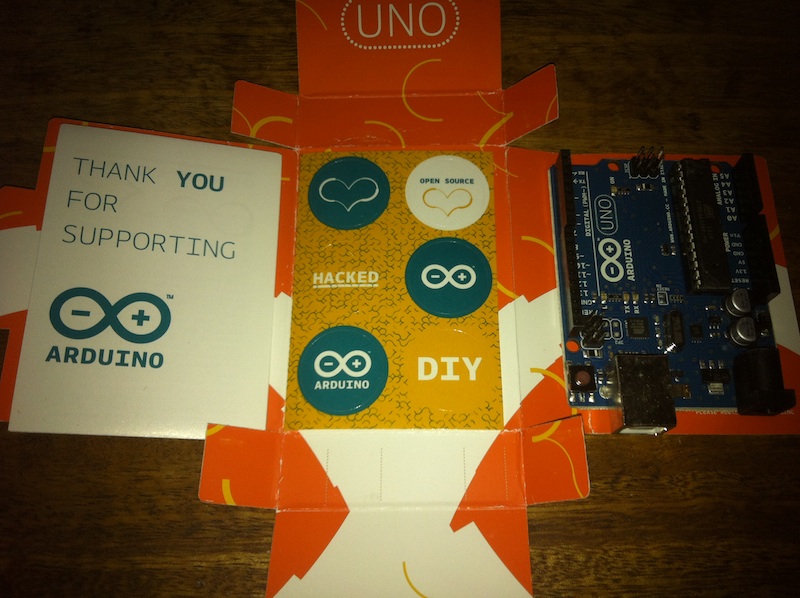
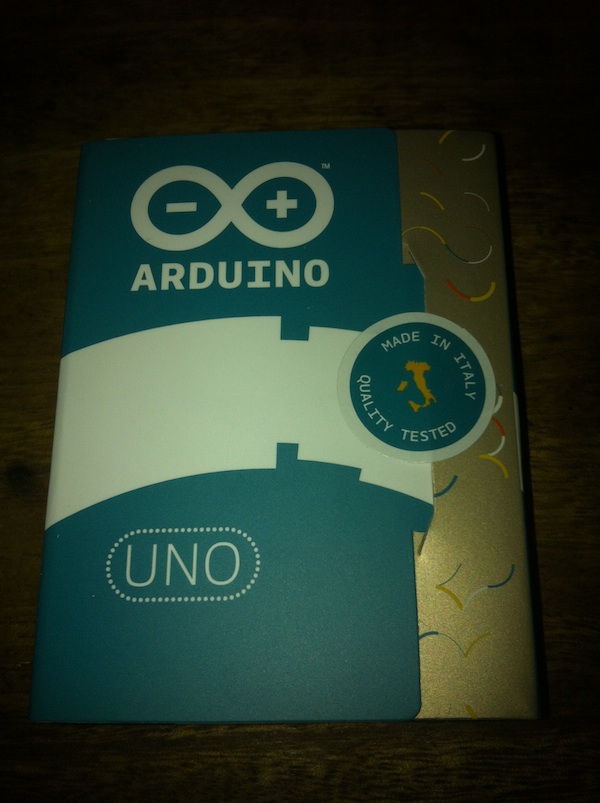
I received my Arduino Uno from Farnell today. One of the nice things about the Arduino is that for a piece of hobbiest electronics, it’s rather attractively packaged!

To do anything useful with the Arduino you’ll need an “A to B type USB cable”. You’ve almost certainly got one already, they commonly come with printers and I always seem to find them around my flat hiding behind furniture.

Download the Arduino environment here. The resulting zip file should be extracted automatically, copy “Arduino” to “Applications”.

Plug in your Arduino. You should see the following dialog pop up:

Click “Network Preferences”, when the config dialog pops up just click apply.

Load the Arduino software!

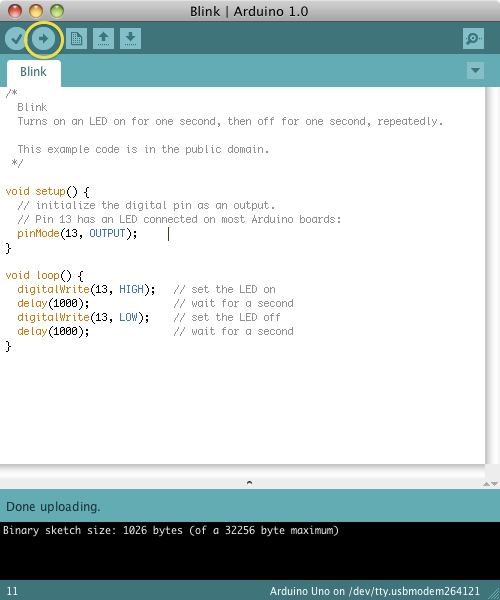
In the Arduino software select File->Examples->1.Basics->Blink

Select the correct serial port. Tools->Serial Port->Something. Where something should be /dev/tty.usbmodemXXX if there’s more than one, some trial and error maybe involved.

Click the upload button (highlighted in yellow below):

You should then see one of the lights on the board start flashing away (again highlighted):

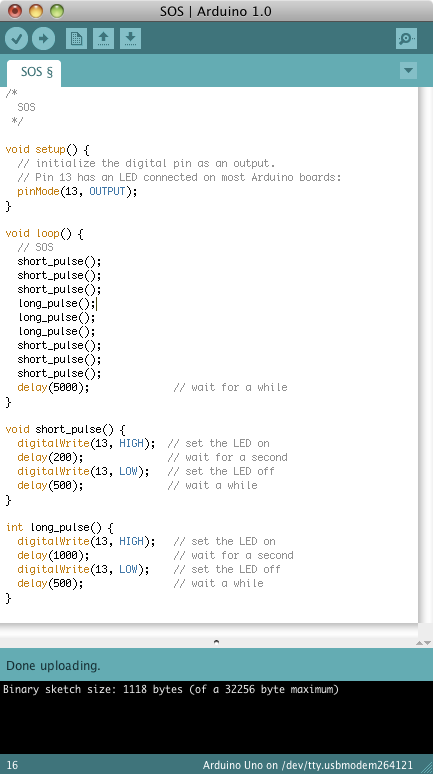
We can now start hacking away at the code. For example we can make the light blink out an SOS signal! The code is basically standard C. The Arduino IDE does some funky preprocessing which lets you get away without including a bunch of header files, but as I understand it it’s really just C underneath.

Here’s my SOS code:


/*
  SOS
 */

void setup() {                
  // initialize the digital pin as an output.
  // Pin 13 has an LED connected on most Arduino boards:
  pinMode(13, OUTPUT);     
}

void loop() {
  // SOS
  short_pulse();
  short_pulse();
  short_pulse();
  long_pulse();
  long_pulse();
  long_pulse();
  short_pulse();
  short_pulse();
  short_pulse();
  delay(5000);              // wait for a while
}

void short_pulse() {
  digitalWrite(13, HIGH);  // set the LED on
  delay(200);              // wait for a second
  digitalWrite(13, LOW);   // set the LED off
  delay(500);              // wait a while
}

int long_pulse() {
  digitalWrite(13, HIGH);   // set the LED on
  delay(1000);              // wait for a second
  digitalWrite(13, LOW);    // set the LED off
  delay(500);               // wait a while
}

Hit Upload again and you should see the light blinking an SOS at you! Embedded programming shouldn’t be this easy it isn’t right!! 🙂

If you’re in the UK you can get an Arduino Uno from Farnell here.

VisualStudio write UNIX style linefeeds using StreamWriter/WriteLine

Like so:

StreamWriter^ sw = gcnew StreamWriter("filename");
sw->NewLine = "\n";
sw->WriteLine("Line data");